
How to Activate Your Orbit Mobile Travel eSIM on iPhone
Follow the steps below to set up your Orbit Mobile travel eSIM on your iPhone.
Tip: Ensure you have a stable internet connection before starting.
Start with the automatic installation video here, or continue with the steps below
1. Check if Your iPhone Supports eSIM
Most devices allow you to check eSIM compatibility in their settings. Here’s how to check on an iPhone:
Option 1: Check via Settings
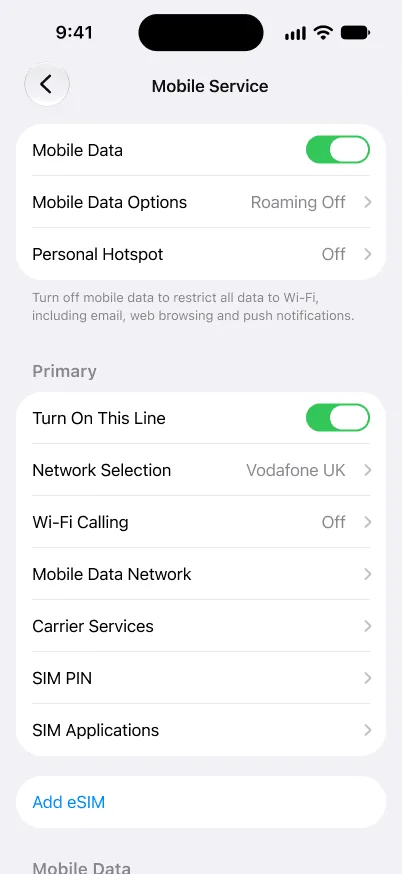
Open Settings -> Tap on Cellular or Mobile Service -> If you see the option "Add eSIM", your iPhone is eSIM compatible.
Option 2: Check Using a Dial Code
This universal method works on most devices:
- Dial *#06# on your keypad
- If "EID" appears on the screen, your phone supports eSIM.
Tip: You can install your eSIM in advance; your plan won’t activate until you connect to a network at your destination.
2. Download and Install Your Orbit Mobile eSIM
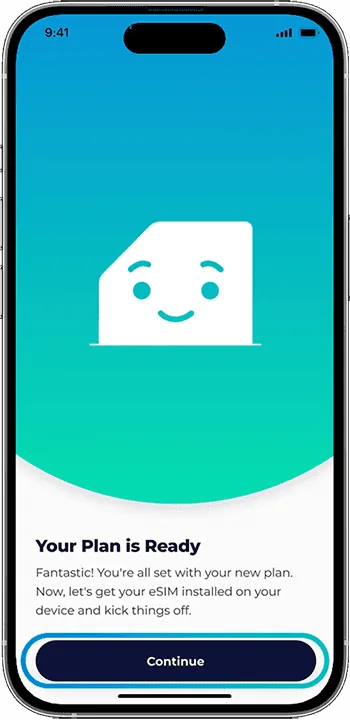
- Choose your plan within the Orbit Mobile app.
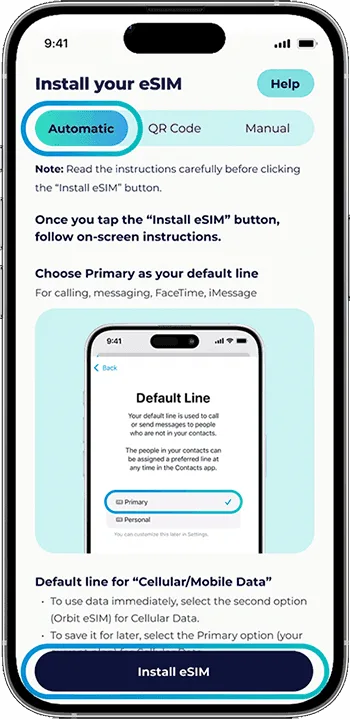
- Ensure your phone is connected to Wi-Fi or cellular data (setup requires internet access).
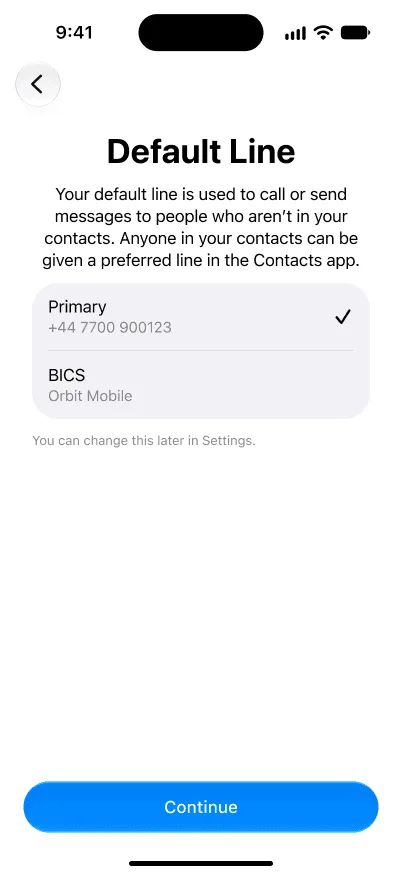
- Tap "Install eSIM", and your iPhone settings will guide you through the installation process.
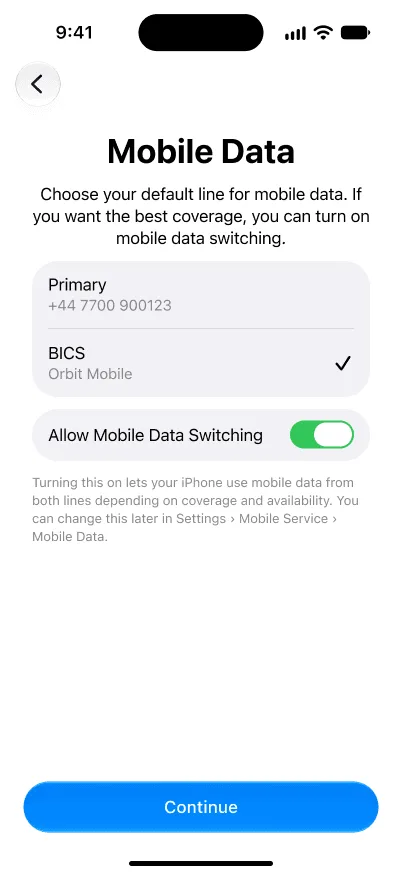
- Go to settings -> Cellular/Mobile data -> Turn on your new Esim -> Turn Data Roaming off -> Make sure Cellular data is connected to eSIM
Note: Your plan will activate only when you arrive at your destination and connect to a local network.
Note: If you're not traveling yet, you can skip the Mobile Data activation step.
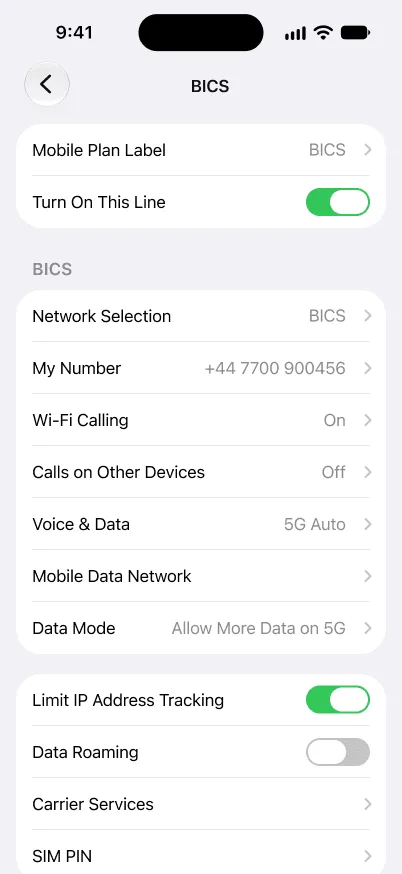
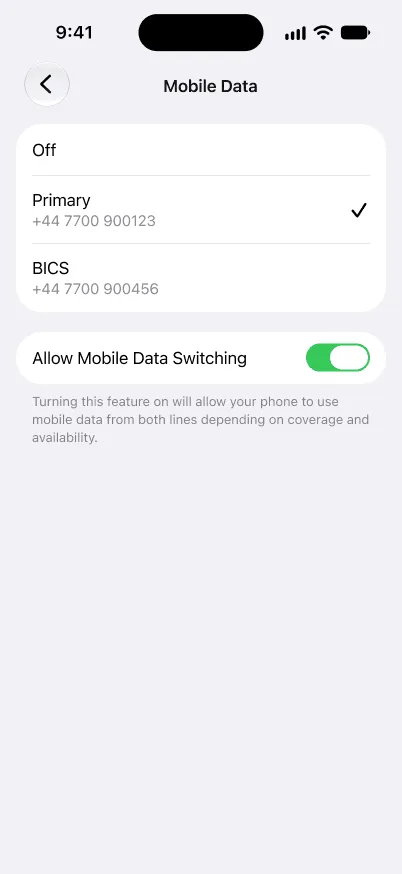
3- QR code activation for iPhone:
Watch the QR installation video guide, or follow the step-by-step guide below
- Make sure your phone is eSIM compatible
- Scan the QR code from the Orbit Mobile application or in your purchase confirmation email
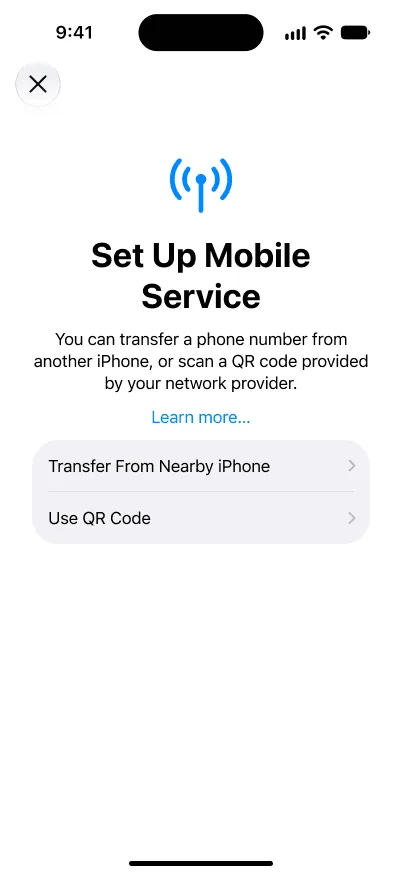
- Go to Settings > Cellular/Mobile Data > Add eSIM
- Select 'Use QR Code' > Scan your QR code
- Go back to Settings > Cellular/Mobile Data - > Turn on your new eSIM -> Turn Data Roaming off -> Make sure Cellular Data is connected to eSIM
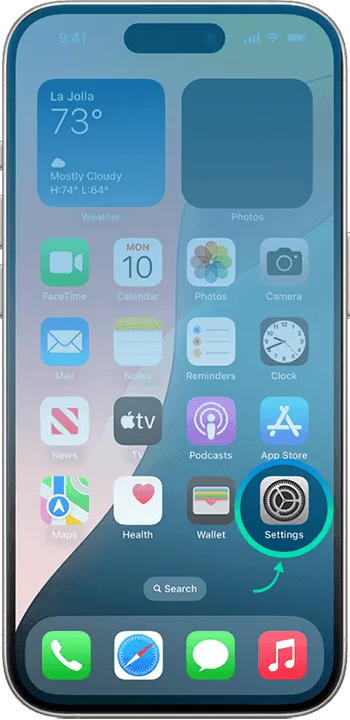
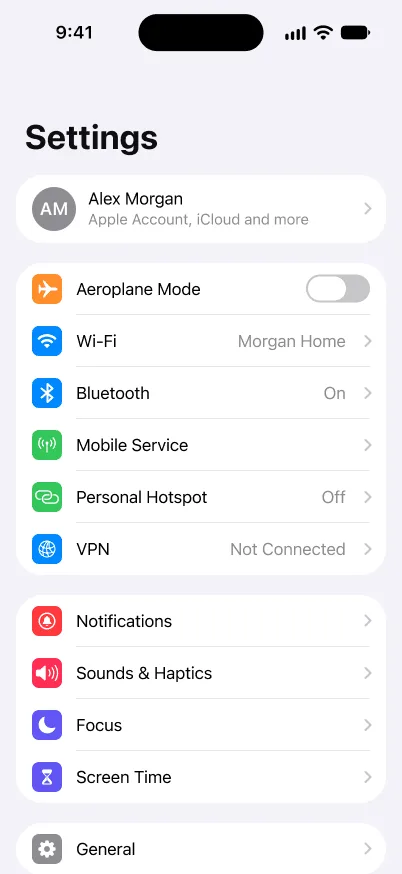
Your activation is now completed.
4- Manually Activate Your eSIM (If QR Code Doesn’t Work)
If you experience issues scanning the QR code, you can manually enter the eSIM details:
- Open Settings > Cellular (or Mobile Data)
- Tap "Add Cellular/Mobile Plan"
- Select "Enter Details Manually" and input the eSIM information provided in your email
When done, your activation will be completed!