
Follow the steps below to install and activate your Orbit Mobile travel eSIM on your Android device.
Tip: Ensure you have a stable internet connection before starting the setup.
1. Checking Your Phone’s eSIM Compatibility
Most Android devices allow you to check eSIM compatibility through settings, but the steps may vary by brand.
Option 1: Checking via Phone Settings
- Go to Settings > Connections > SIM Manager
- If the Add eSIM option is available, your phone supports eSIM.
Option 2: Checking via Dial Code
- Dial *#06# on your phone’s keypad.
- If EID (Embedded Identity Document) appears on the screen, your phone is eSIM-compatible.
2. Downloading Your Orbit Mobile eSIM
1. Ensure your phone is connected to Wi-Fi or a cellular network.
Note: Your plan will only activate when you reach your destination and connect to a local network. You can download the eSIM now and update the settings later.
2. Update Your Mobile Data Settings:
- Go to Settings > Mobile Service (or Cellular Data) > Mobile Data (or Cellular Data)
- Switch from "Primary" (your current phone number) to "Personal" (your new eSIM).
Tip: Disable data roaming on your primary SIM before traveling to avoid roaming charges.
- Go to Settings > Mobile Service > Select your primary number > Turn off Data Roaming.
3. Activating Your Orbit Mobile eSIM on Android
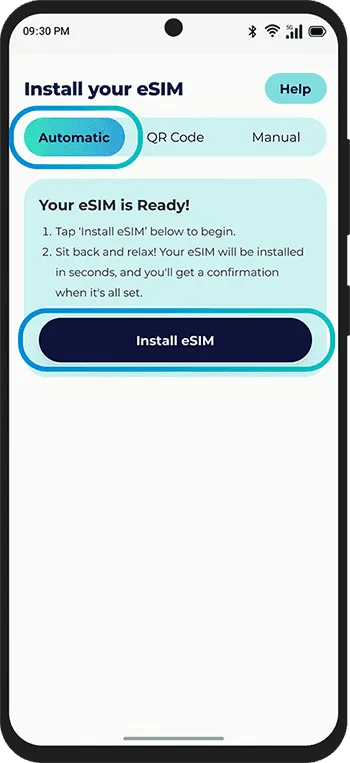
Option 1: Automatic Activation
- Ensure your phone is eSIM compatible.
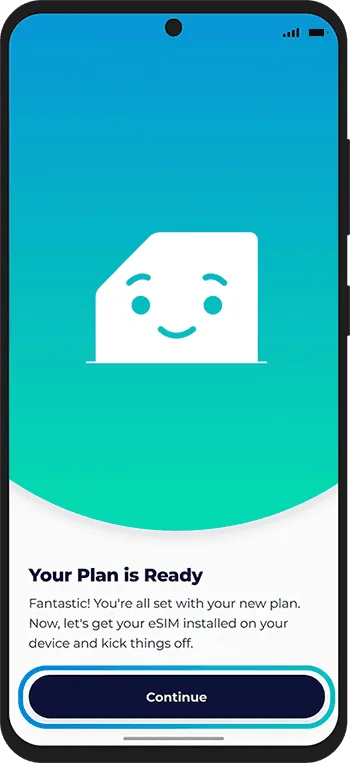
- Open the Orbit Mobile app choose your plan and tap Install eSIM.
- Go to Settings > Cellular/Mobile Data.
- Turn on your new eSIM.
- Enable Data Roaming.
- Ensure Cellular Data is set to use the new eSIM.
Your activation is now complete!
Option 2: QR Code Activation
- Ensure your phone is eSIM-compatible.
- Go to Settings > Connections > SIM Manager > Add eSIM.
- Select Use QR Code and scan your QR code.
- Go back to Settings > Connections > SIM Manager > Mobile Data.
- Turn on your new eSIM.
- Go to Settings > Connections > Mobile Networks.
- Enable Data Roaming.
Your activation is now complete!
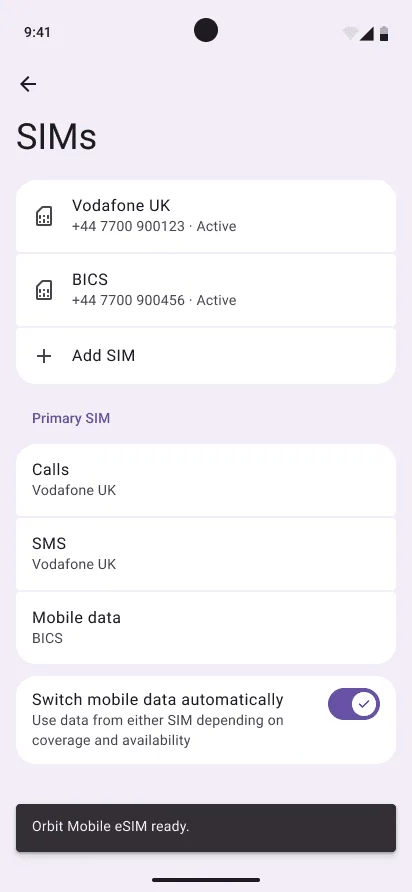
These screens are from a Google Pixel. On a Samsung phone, Network & internet is called Connections, and SIMs is called SIM manager.
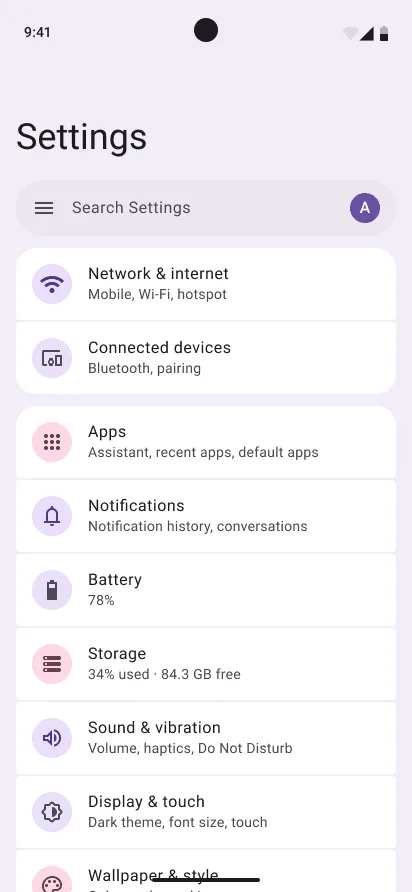
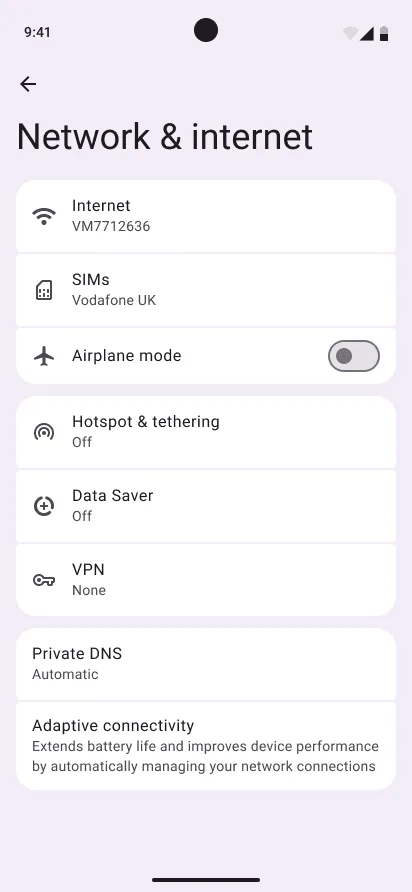
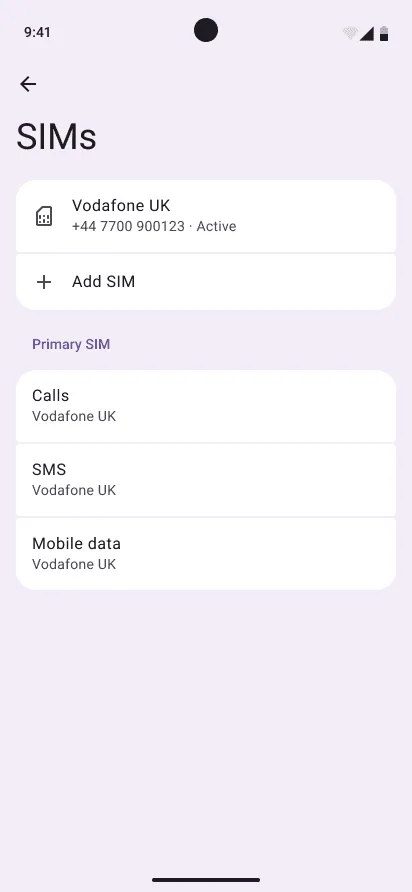
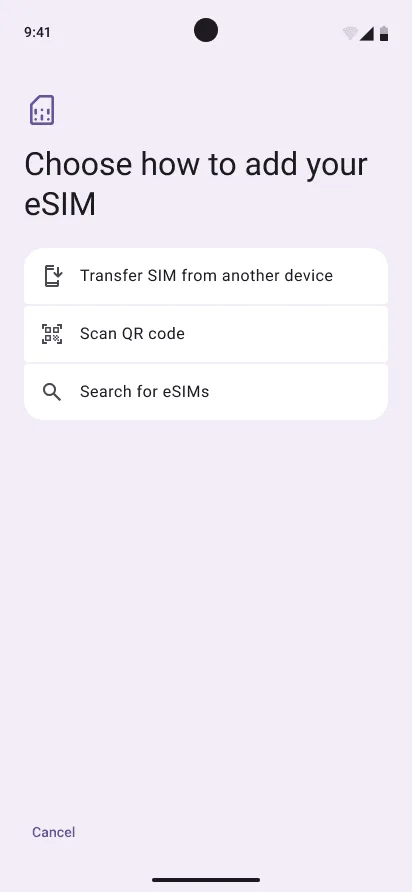
Option 3: Manual Activation
If you are unable to scan the QR code, you can enter the eSIM details manually:
- Ensure your phone is eSIM-compatible.
- Go to Settings > Connections > Sim Manager.
- Tap Add eSIM.
- Select Scan QR Code
- Tap Enter Activation Code
- Input the details provided in your purchase confirmation email.
Your activation is now complete!
Please ensure you have set your APN correctly too. You can find out how to do this here: What's an APN and why do I need to set this up on my Android device?